














Gaming on the Go: The Avantgarde App for iOS and Android
Avantgarde Mobile: Your Casino in Your Pocket
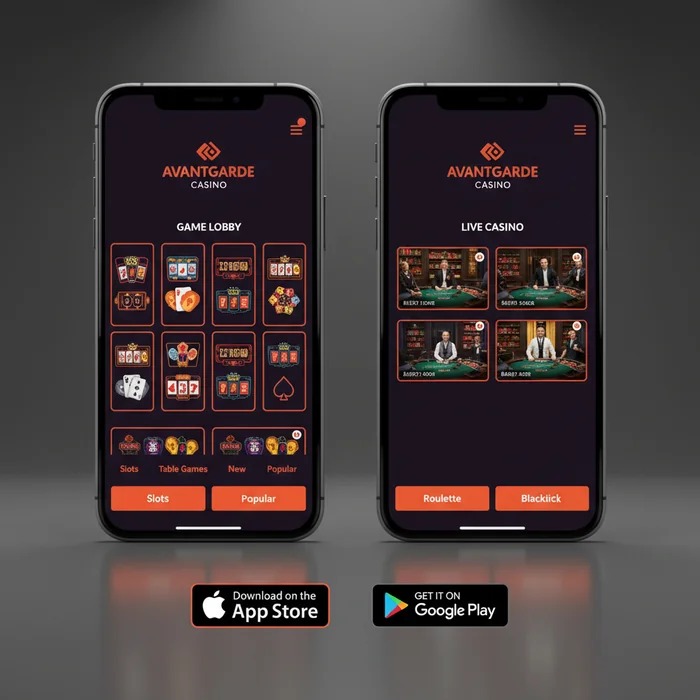
The Avantgarde app transforms your smartphone into a fully equipped casino — no desktop required, no compromise on quality. Whether you're commuting, relaxing at home, or grabbing five minutes between appointments, the entire platform travels with you. We've designed the mobile experience specifically so that first-time players can find their footing quickly, without any technical knowledge required.
If you've never played at an online casino before, starting on mobile is actually one of the smoothest routes in. Our interface guides you through registration in just four steps, lets you explore games in demo mode before spending a single cent, and connects you to live support the moment you have a question. Creating your account takes under three minutes on any modern smartphone, and you'll have access to the full catalogue from the moment you're set up.
Avantgarde Device Compatibility at a Glance
We support a wide range of devices so that nearly any player can access the platform without needing the latest hardware. The table below covers the main options available in 2026.
| Platform | Minimum Version | Download | App Size |
|---|---|---|---|
| iOS (iPhone / iPad) | iOS 13.0 or later | Available via App Store | Approximately 85 MB |
| Android (Phone / Tablet) | Android 8.0 or later | Direct APK from our site | Approximately 72 MB |
| Windows (Desktop App) | Windows 10 or later | Available via our site | Approximately 110 MB |
| Mobile Browser (No Download) | Any modern browser | No download needed | Zero storage used |
| Tablet (iOS or Android) | Same as phone requirements | Same app, optimized layout | Same as phone version |
What the Avantgarde App Delivers
The mobile platform isn't a stripped-down version of something bigger — it's a complete experience built with touch-screen play in mind. Every feature available on desktop is mirrored here, and in several areas, the mobile version offers distinct advantages for new players who prefer a more focused, guided environment.
Games on Mobile
Our mobile catalogue includes over 1,000 titles spanning slots, live dealer tables, video poker, and instant-win games. Every title has been tested for touch responsiveness, so swiping, tapping, and adjusting bets all feel natural rather than clunky. Beginners will find the filtering tools particularly useful — you can sort by lowest stake, highest return-to-player rate, or simply browse what's new.
Demo mode is available on the majority of our slot titles, meaning you can play with virtual credits before committing real money. This is one of the most beginner-friendly features we offer: learn how a game works, understand its bonus rounds, and build confidence — all at zero cost. Three titles that perform especially well on mobile are Book of Dead, Sweet Bonanza, and Lightning Roulette, each optimized for smaller screens without losing any visual quality.
Live dealer tables stream in HD directly to your device, with real croupiers managing real cards and wheels. For first-time players curious about table games, our low-stakes live blackjack tables allow you to sit in with minimal buy-ins, observe a few rounds, and get comfortable at your own pace.
Mobile Bonuses
Every promotion available on desktop is fully accessible through the Avantgarde mobile app — we don't gate offers behind a specific device. Our welcome package applies whether you register on your phone, tablet, or browser. New players who sign up via mobile receive the same structured welcome offer as anyone else, with clear wagering terms explained step by step in the promotions section.
We do run periodic Avantgarde mobile bonus campaigns that are notified exclusively through push notifications — another reason to enable alerts after installing the app. These time-limited offers tend to include free spins on newly launched titles or deposit matches on specific days of the week. Visiting our promotions page keeps you up to date with what's currently active.
Reload bonuses, cashback programs, and our VIP tier system all function identically on mobile. As you progress through our loyalty structure, rewards accumulate regardless of which device you use — points from mobile sessions and desktop sessions count together toward your tier status.
Banking on Mobile
Deposits and withdrawals work seamlessly from your phone. We support a wide range of payment methods accessible directly through the mobile cashier, including Visa, Mastercard, Skrill, Neteller, Paysafecard, and several cryptocurrency options such as Bitcoin and Ethereum. Most deposits reflect in your account within seconds, so you're never left waiting to play.
Withdrawals initiated on mobile follow the same processing timelines as desktop requests. E-wallets like Skrill and Neteller typically process the fastest, while bank transfers take longer depending on your financial institution. First-time players should complete identity verification early — it's a one-time process that unlocks faster withdrawal approvals going forward, and it can be done entirely from your phone by uploading documents through the app.
How to Download the Avantgarde App and Get Started
iOS Download
- Open the App Store on your iPhone or iPad and search for "Avantgarde Casino", or follow the direct link provided on our app page.
- Tap "Get" to begin the download. The app is free and requires no in-app purchase to access any core feature.
- Install and open the app once the download completes — it typically takes under a minute on a standard Wi-Fi connection.
- Log in or register — existing players can log in immediately, while new players are guided through a four-step registration process that takes under three minutes.
Android Download
Because casino apps are not listed on the Google Play Store, the Avantgarde Android app is available as a direct APK download from our site. Here's how to install it:
- Visit our app download page on your Android device and tap the APK download button.
- Before installing, go to your device's Settings → Security → Unknown Sources (or "Install Unknown Apps" on newer Android versions) and enable installations from your browser.
- Open the downloaded APK file from your notifications bar or file manager and tap Install.
- Once installed, open the app, complete a quick registration or log into your existing account, and you're ready to play.
No download? No problem. If you'd rather not install anything, our full platform runs directly in any modern mobile browser — Chrome, Safari, Firefox, and Edge all work well. Simply visit playavantgarde.com on your phone and you'll be redirected to the mobile-optimized site automatically. No app, no storage used, no setup required. This is particularly useful if you're on a device with limited storage or if you simply want to try things out before committing to an install.
Speed, Stability, and Mobile Performance
We've optimized the Avantgarde mobile casino for real-world conditions — not just ideal Wi-Fi environments. Games load quickly on 4G connections, and the platform adapts gracefully when signal quality fluctuates. Live dealer streams are compressed intelligently so that playback stays smooth even at moderate connection speeds, without sacrificing the visual quality that makes those tables enjoyable.
Data usage is reasonable by streaming standards. Slot sessions consume relatively little data, while live table sessions use more due to continuous video. If you're mindful of your mobile data allowance, downloading the app rather than using the browser version can reduce background data consumption slightly. Push notifications are lightweight and don't impact battery life in any meaningful way.
For battery longevity during longer sessions, we recommend lowering your screen brightness slightly and closing background apps before playing. The platform itself doesn't run background processes beyond the active session, so it's no heavier on your battery than streaming video at the same quality level.
Performance tip: For the most consistent experience, connect via Wi-Fi when playing live dealer games, and use mobile data for slots when you're out. The app handles the switch between connection types gracefully, but starting a live table session on a stable connection avoids any mid-hand interruptions.
Mobile App vs Desktop: Which Works Best for You
| Feature | Mobile App | Desktop |
|---|---|---|
| Game Selection | Full catalogue, 1,000+ titles | Full catalogue, identical range |
| Graphics Quality | HD, touch-optimized layouts | Full HD, larger display advantage |
| Loading Speed | Fast on 4G/5G and Wi-Fi | Fastest on wired broadband |
| Push Notifications | Yes — real-time bonus alerts | Browser notifications only |
| Bonuses | All promotions accessible | All promotions accessible |
| Payment Methods | Full cashier, all methods | Full cashier, all methods |
| Live Chat Support | Available in-app, 24/7 | Available on-site, 24/7 |
Both options deliver the complete Avantgarde experience — the choice really comes down to context. Mobile suits players who value flexibility and want to dip in and out throughout the day. Desktop works well for longer live table sessions where a larger screen and stable keyboard add comfort. Many of our players use both, moving between devices depending on where they are. Your account, balance, and progress sync instantly across all of them.
Ready to Play? Start with Avantgarde Today
Whether you install the dedicated app or open your mobile browser right now, the full platform is waiting. For anyone stepping into online casino gaming for the first time, we've made sure the path forward is clear: register, explore in demo mode, and play at stakes that suit your comfort level — all from the device already in your hand.
Download the Avantgarde app from our app page, or go straight to your browser and visit us at playavantgarde.com. When you're ready to open your account, our sign-up page walks you through every step. The whole process is designed to feel straightforward — because at Avantgarde, the experience begins the moment you arrive, not after a complicated setup.